Common Wi-Fi Problems in Large Homes and How to Fix Them

  • Home
  • Blog
  • Common Wi-Fi Problems in Large Homes and How to Fix Them
Common Wi-Fi Problems in Large Homes and How to Fix Them
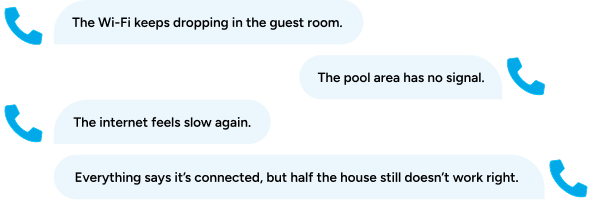
You’ve probably had these kinds of calls tons of times:
So you send a tech. They walk the property with a phone, look at bars, run a speed test in a few rooms, reboot a couple devices, maybe move an access point or swap one out. Sometimes that helps. A lot of times it just costs you in labor. Once you’re dealing with a large home, outdoor coverage, multiple access points, and a pile of connected devices, a phone only tells you what one device sees in one spot. It won’t show you channel overlap, rogue APs, hidden interference, failed 5 GHz coverage, or why the network feels slow even though the ISP speed test looks fine. That’s where a proper Wi-Fi site survey changes the conversation. Instead of guessing, you can see where coverage drops, where interference builds, and where settings or hardware are working against you. In this post, I’m going to walk through some of the most common Wi-Fi problems integrators run into, what usually causes them, what you can try first, and where a proper survey makes the answer a whole lot clearer.

Why Wi-Fi Coverage Fails Indoors and Outdoors

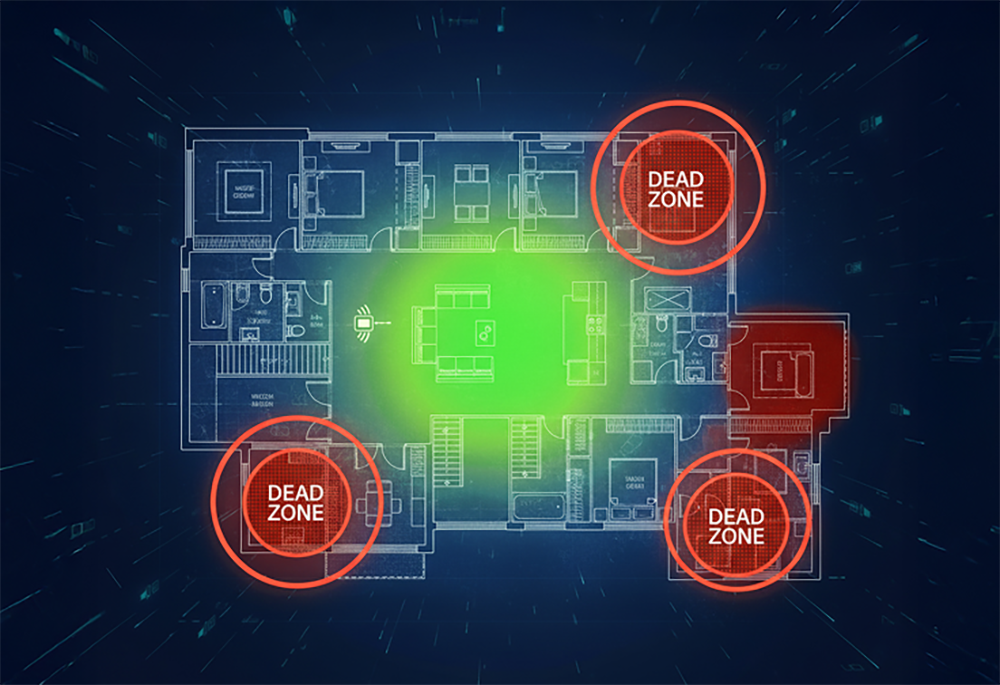
The client tells you the kitchen is fine, but the patio is dead. The office works most of the time, but the upstairs bedrooms don’t. The living room streams without a problem, but the pool house barely connects.

That doesn’t always mean the whole network is bad. A lot of the time, it means the coverage pattern doesn’t match how the client is using the space. Weak coverage and no coverage are different problems, and they need different fixes.

What you can try to fix Wi-Fi coverage

Why Wi-Fi Is Slow or Unresponsive Sometimes

This is one of the hardest complaints for clients to describe and one of the easiest for integrators to get stuck on. The client says the internet feels slow, but the ISP speed test looks fine. Devices connect, but apps stall. Streaming buffers for no obvious reason. Calls freeze. Web pages hang halfway through loading.

That kind of problem often has very little to do with raw internet speed. It can come from channel interference, bad channel width, high retries, devices that won’t let go of a distant AP and switch to a closer one, poor roaming behavior, too many devices competing for airtime, or rogue APs and noisy devices in the area.

What you can try when Wi-Fi feels slow

How Channel Interference Causes Wi-Fi Problems

This is one of the most common problems in larger homes. Multiple APs end up on the same channel, especially in 2.4 GHz. The signal may still look strong, but performance suffers because those APs are competing for the same airtime. In condos and MDUs, it gets worse because your APs may also be competing with nearby networks stacked onto the same few channels.

What you can try to fix channel interference

How the Wrong Channel Width Hurts Wi-Fi Performance

Channel width gets ignored all the time, and it causes more trouble than people realize.

If the channel width is too wide for the environment, the network creates unnecessary interference and eats up spectrum it doesn’t need. If it’s too narrow, you may be limiting performance where the environment could support more.

The right setting depends on the job. House size, neighboring networks, outdoor overlap, device density, and how many APs are in play all matter.

What you can try to fix channel width problems

How Rogue APs Create Hidden Wi-Fi Interference

You finish the job, the network is stable, and then a printer, camera, ISP modem, or consumer gadget starts broadcasting its own SSID. Now your carefully planned channels are sharing airtime with equipment you didn’t install and may not even know exists.

Common rogue APs include printers with Wi-Fi Direct enabled, cameras with setup SSIDs still broadcasting, ISP modem/router Wi-Fi left turned on, and consumer extenders or routers added after your install.

What you can try to fix rogue AP problems

How Bad AP Settings Break a Good Wi-Fi Network

Sometimes the hardware is fine. The placement is mostly fine too. The real problem is in the settings.

Common issues include transmit power set too high, radios left on where they don’t belong, radios turned off where they’re needed, channels left on auto in environments where that causes conflicts, and security or roaming settings that don’t match the deployment. These are the jobs where the client says the network is mostly good, but certain devices behave badly, roaming feels off, or performance changes depending on where they’re standing.

What you can try to fix bad AP settings

How Wi-Fi Security Settings Affect Performance

Security settings are part of Wi-Fi performance whether people think of them that way or not. Outdated or poorly matched settings can affect both protection and usability.

Management Frame Protection is one example. In the right environment, it helps protect against spoofing attacks like deauthentication and disassociation and can improve reliability. But older devices may not handle it well, so it has to be reviewed in the context of the whole network and the client’s device mix.

What you can try to fix Wi-Fi security setting issues

Why SpecOp Secure Approaches Wi-Fi Troubleshooting Differently

Once you know what kind of problem you’re dealing with, the next challenge is getting to the answer without wasting half a day chasing the wrong thing. 

Here’s our process: 

What makes this different from a standard site visit is what comes out the other end. When our engineers finish the analysis, you get a plan. Specific channels for each AP. Power settings adjusted for the actual RF environment. Which radios should be on or off in each part of the property. What channel widths make sense given the AP density and neighboring networks. If rogue devices are causing interference, those show up in the report too, along with what to do about them. The integrator isn’t left figuring it out. The work of interpreting the data is already done. You walk back in with heatmaps your client can understand, findings that explain what went wrong, and a clear set of changes to make.

That report can include: 

Click the image to view in larger size:

Click the image to view in larger size:

Click the image to view in larger size:

How to Troubleshoot Wi-Fi Problems the Right Way

Most Wi-Fi problems are not random. 

Dead zones, poor coverage, slow performance, same-channel interference, oversized channels, rogue APs, and bad AP settings all leave evidence behind. The problem is that you don’t see much of that evidence by walking around with a phone. 

proper Wi-Fi site survey and coverage report let you stop guessing and start working from data. That gives you a better troubleshooting process now and a stronger path to upgrades, redesigns, and longer-term support. 

The more visibility and support structure you have around the network, the less time you spend chasing the same issues over and over.  

If you keep seeing the same coverage complaints from job to job, you may want to read this blog about the benefits of predictive Wi-Fi design.

Need help troubleshooting a problem Wi-Fi network?

If you’ve got a project where the Wi-Fi still isn’t right and the usual fixes aren’t getting you anywhere, let’s talk it through. 

Book a call with Ted and we’ll look at the job, the symptoms, and the best way to get to the real cause. 

FAQ: Common Wi-Fi Problems and How to Fix Them

A coverage issue usually shows up as weak or missing signal in a specific area. Interference shows up when the signal looks strong, but performance is still bad. A Wi-Fi heatmap and site survey help separate the two. If the signal is missing, you’re looking at a coverage problem. If the signal is there but the network still struggles, interference, channel overlap, or bad settings are usually involved.

Because slow Wi-Fi and slow internet are not always the same problem. You can have a strong ISP connection and still have poor Wi-Fi performance because of channel interference, bad channel width, high retries, rogue APs, or devices hanging onto the wrong access point.

A rogue AP is any wireless access point or device broadcasting Wi-Fi that you didn’t plan for as part of the network design. Common examples are printers with Wi-Fi Direct enabled, cameras broadcasting setup SSIDs, ISP modem/router Wi-Fi left turned on, or consumer extenders added after the install.

Start by checking whether there is already an AP meant to cover that area. If there is, confirm it has power, is connected, and is actually working. If the hardware is fine, the issue may be AP placement or a design gap. A coverage heatmap will tell you whether the space needs a replacement AP, a relocated AP, or an additional AP.

Channel interference happens when multiple APs are broadcasting on the same or overlapping channels. That can come from your own network, neighboring networks, or rogue devices in the home. It is especially common in 2.4 GHz and in dense environments like condos or homes with a lot of client devices.

A site survey and RF analysis will usually show it. If the channel width is too wide, it can create unnecessary interference. If it is too narrow, you may be limiting performance. The right setting depends on the environment, the AP density, and how much neighboring Wi-Fi is competing for airtime.

Yes. We see it all the time. Power set too high, radios left on where they shouldn’t be, channels left on auto, or security and roaming settings that don’t fit the environment can all make a solid network behave badly.

Not every time, but if you are dealing with repeat complaints, inconsistent performance, dead zones, or a large home with multiple APs, a site survey will usually save time. It gives you real data instead of another service visit built around trial and error.

Your tech runs the survey, and our engineering team reviews the file in Ekahau Pro. We turn that data into a client-ready report with heatmaps, findings, and specific recommendations. That gives you a clearer troubleshooting path and something solid to put in front of the client.

Yes. Once you have real data and a clear fix plan, it becomes easier to justify upgrades, redesigns, and ongoing support. That’s one reason troubleshooting often opens the door to stronger managed network relationships.

Share this post:

Facebook
Twitter
LinkedIn

Follow us on our Social Media: