


Wi-Fi Troubleshooting for Integrators 

When the client says  “the Wi-Fi is acting up again,” you don’t need a luck-based reboot routine. 

Run a fast site survey, send us the file, and we’ll tell you what’s actually wrong and what to change. 

Powered by Ekahau Analyzer + Sidekick 2, backed
by SpecOp engineering.
wifi

What “Wi-Fi Troubleshooting” Usually Looks Like (and Why It Burns Time)

You get the call. You send a tech. They walk the property with a phone, watch bars jump around, run a speed test, reboot a few things, and hope the problem shows itself.

In a larger home, a business, or anything with multiple WAPs, that method breaks down fast. 

Phones don’t show co-channel interference, channel overlap, hidden SSIDs, or the rogue AP your client added after you finished the job.

RESULTS

Troubleshoot Wi-Fi with an Ekahau Site Survey 

(Not a Phone) 

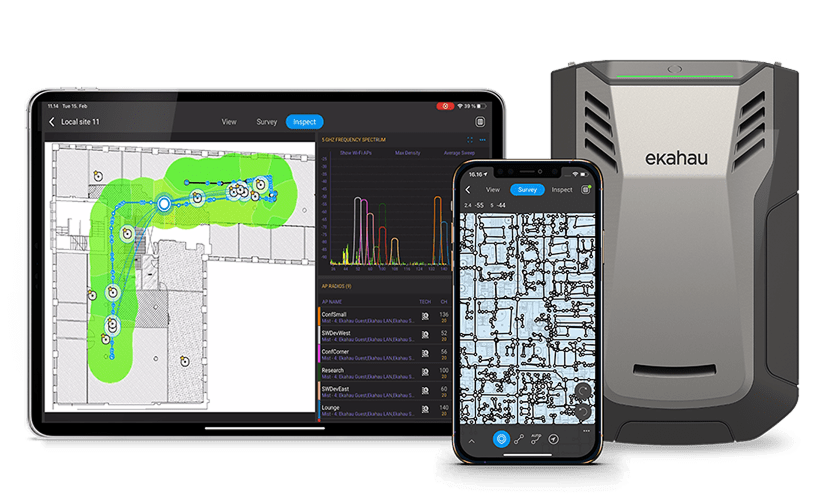
Ekahau Analyzer paired with Sidekick 2 turns one walk-through into real RF data: coverage, SNR, interference, channel use, band usage, and the SSIDs/APs in the environment.


This is the difference between “something’s interfering” and “this device is interfering with channel 36, right where your client works.” 

How SpecOp Secure Makes This Easy
(Even If You’re Not an RF Specialist)

You don’t need to become an Ekahau expert or build an internal RF team.
Here’s the workflow we built for integrators:

STEP 01: Step 1: We get the Sidekick to you

You don’t have to keep specialty survey gear on every truck. When you have a problem project, we coordinate the Sidekick so your team can capture the right data.

Step 2: Your tech runs the survey with Ekahau Analyzer

One pass captures the troubleshooting dataset. Ekahau can show a quick heatmap on-site, but the real value is in the file you export and upload.

Step 3: SpecOp engineers analyze and deliver a client-ready report

We load the survey into Ekahau Pro and turn it into an action plan you can implement and explain: heatmaps, findings, and specific fixes.
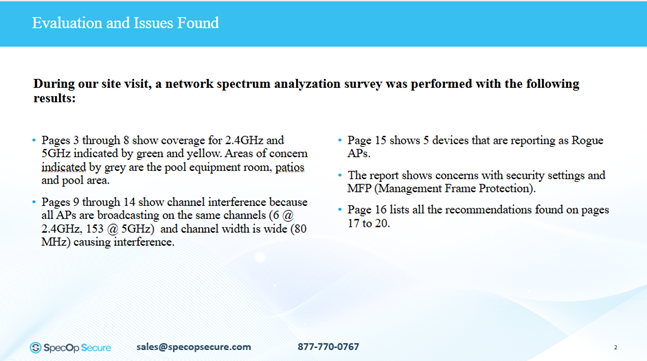
Excerpt from the final troubleshooting report delivered to the integrator. Rogue APs, channel conflicts, and security issues were identified with recommended changes mapped to the existing deployment.
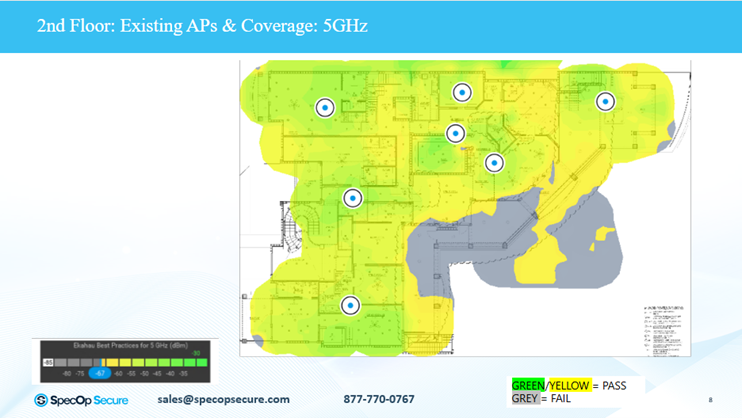
Coverage heatmap from a completed troubleshooting report. Grey areas identified failed 5GHz coverage zones tied to AP placement or upstream path issues. This is the difference between “coverage should be fine on paper” and knowing exactly where the network is falling short before scheduling another visit.

Turn a Wi-Fi Callback Into