

We’ve all been there. You get this call:
“Hey, the Wi-Fi in the house isn’t working. Again.”
So, you send a tech. They walk around with their phone, stare at signal bars, maybe run a speed test in a few rooms. They move a WAP, reboot a switch, try a different SSID name, swap a piece of hardware “just to see.”
That’s the current “how to troubleshoot Wi-Fi” playbook for a lot of properties. Walk. Stare at bars. Make a change and hope that solves the issue.
Could be a rogue AP. Could be a misplaced WAP. Could be power settings, bad channels, a damaged cable, or a printer screaming on its own SSID. There’s no clean way to see the whole picture, so fixing Wi-Fi issues in a building becomes an issue of trial and error.
SpecOp Secure has engineered a solution for your Wi-Fi woes using the Ekahau Analyzer and Ekahau Sidekick 2, and we back it with an engineering team that does the heavy lifting for you.
In a small condo with one router, walking around with a phone is annoying but sometimes enough. Stretch that out to a large home or business with multiple floors and more than a handful of WAPs, and that approach falls apart fast.
Real-world problems you run into when you troubleshoot Wi-Fi this way:
So every time the client calls about Wi-Fi issues in the home, you end up burning time and margin. Maybe you stop the complaints for a while. Maybe you don’t. Either way, there’s no proof, no heatmap, no clear Wi-Fi site survey to stand on.
Ekahau Sidekick 2 is a Wi-Fi measurement device built for serious work. Pair it with Ekahau Analyzer on a phone or tablet and you have a proper Wi-Fi analyzer instead of a phone and a guess.
One walk of the property gives you core Wi-Fi survey data, including:
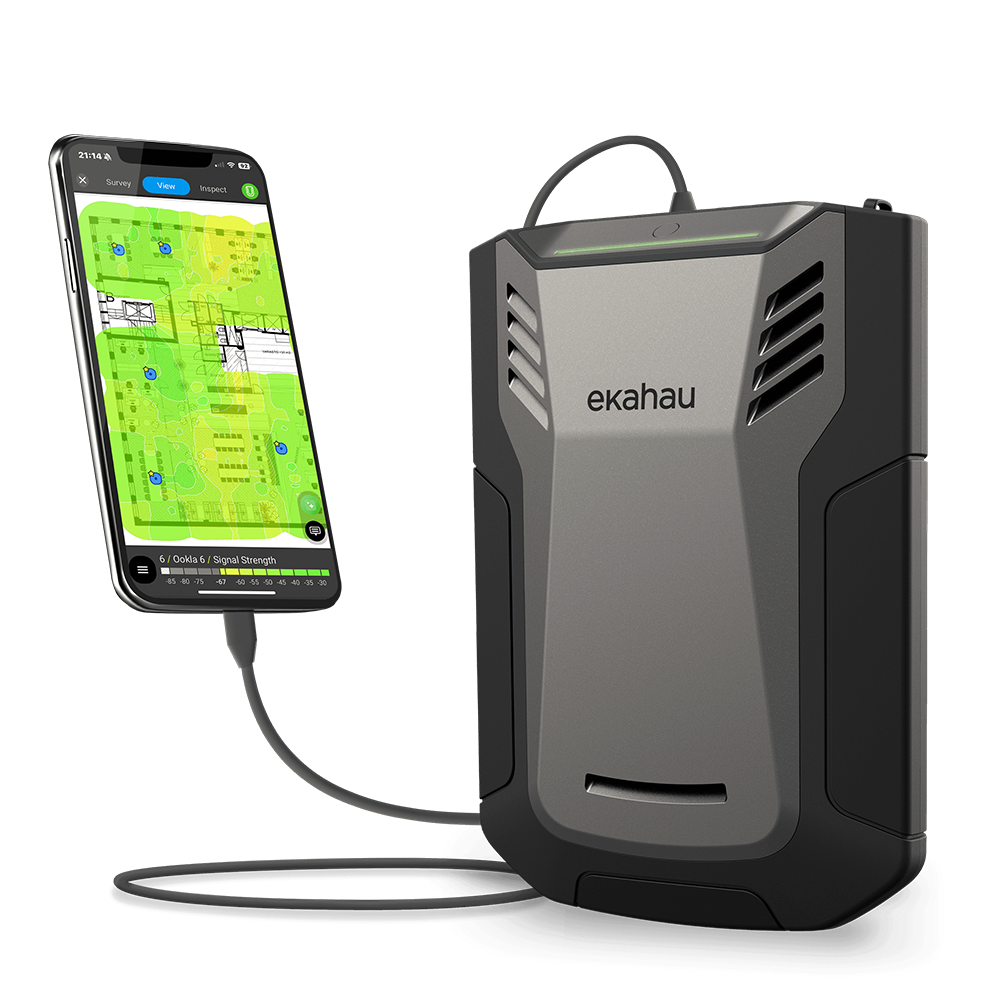
And that’s just a sampling of information that can be gathered. In other words, you get enough detail to see what’s actually happening on the network, not just where a single device happens to struggle.
We use Ekahau not just for troubleshooting Wi-Fi in buildings, but also for predictive Wi-Fi design and Wi-Fi 7 optimization.
Most integrators don’t want to spend thousands on Ekahau hardware, licenses, and training just to use it a few times a year. That’s where SpecOp comes in. We already own the gear, carry the software, and have the engineers who use it every day, so you get the benefit without taking on the equipment cost or the learning curve.
Here’s the way we built this for you.
You don’t have to own the hardware or keep it on every truck. When you have a problem project and need real Wi-Fi diagnostics, we get an Ekahau Sidekick 2 to you.
Your tech walks the house with the Sidekick and Ekahau Analyzer running. One pass captures everything: signal strength, noise, channel use, interference, and dead spots. This is your Wi-Fi troubleshooting data set.
When they tap “Done” in the app, Ekahau shows a basic Wi-Fi heatmap right on the iPad. You can immediately see where coverage drops off or disappears, which is great for a quick gut check with the client on-site. But that on-screen heatmap is just the surface. It doesn’t diagnose performance or tell you why things are breaking.
From there, you export the full survey file and upload it to us.
SpecOp’s engineering team loads your survey into Ekahau Pro and turns it into something you can use with a client, builder, or architect: